

Prerequisite: Create an account and complete onboarding before starting.
Your live site
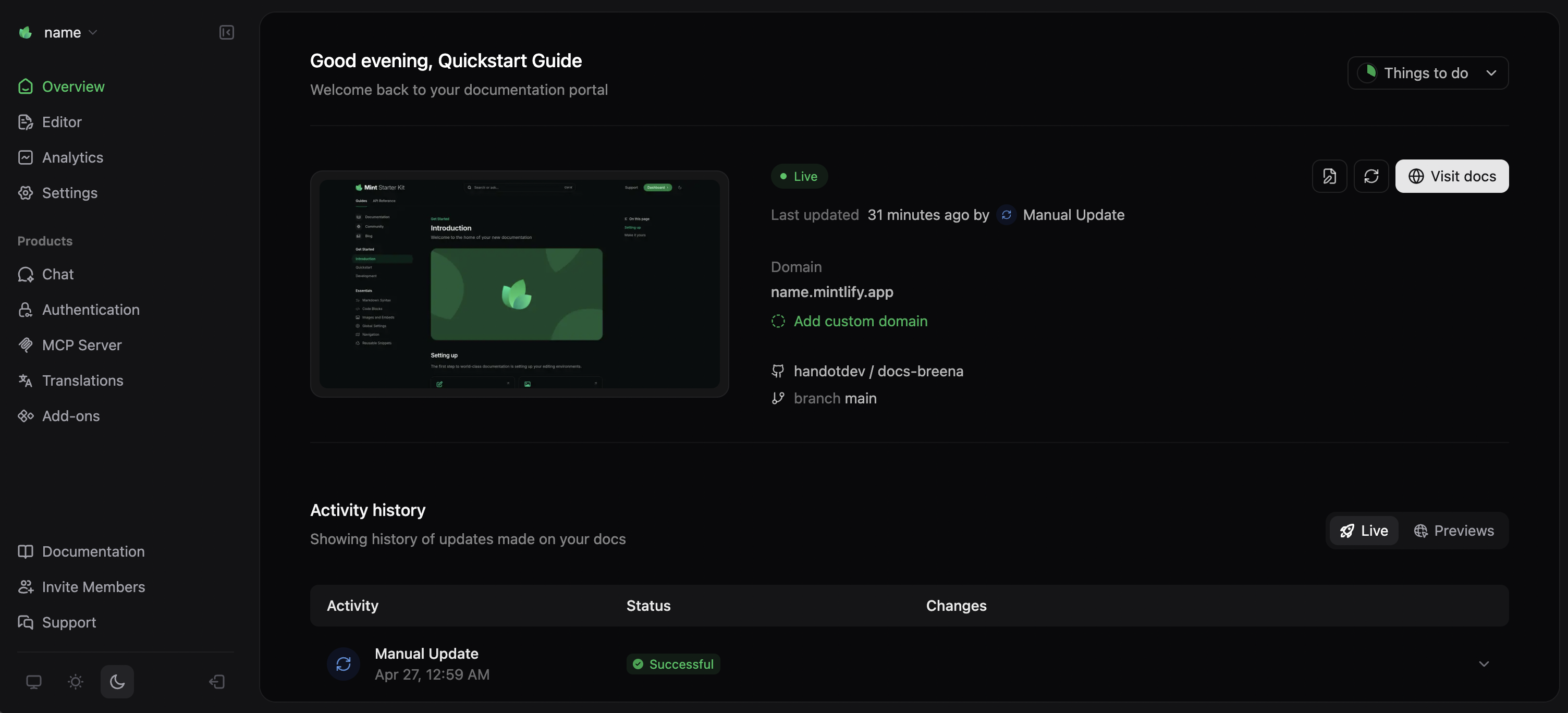
After onboarding, your site deploys automatically to: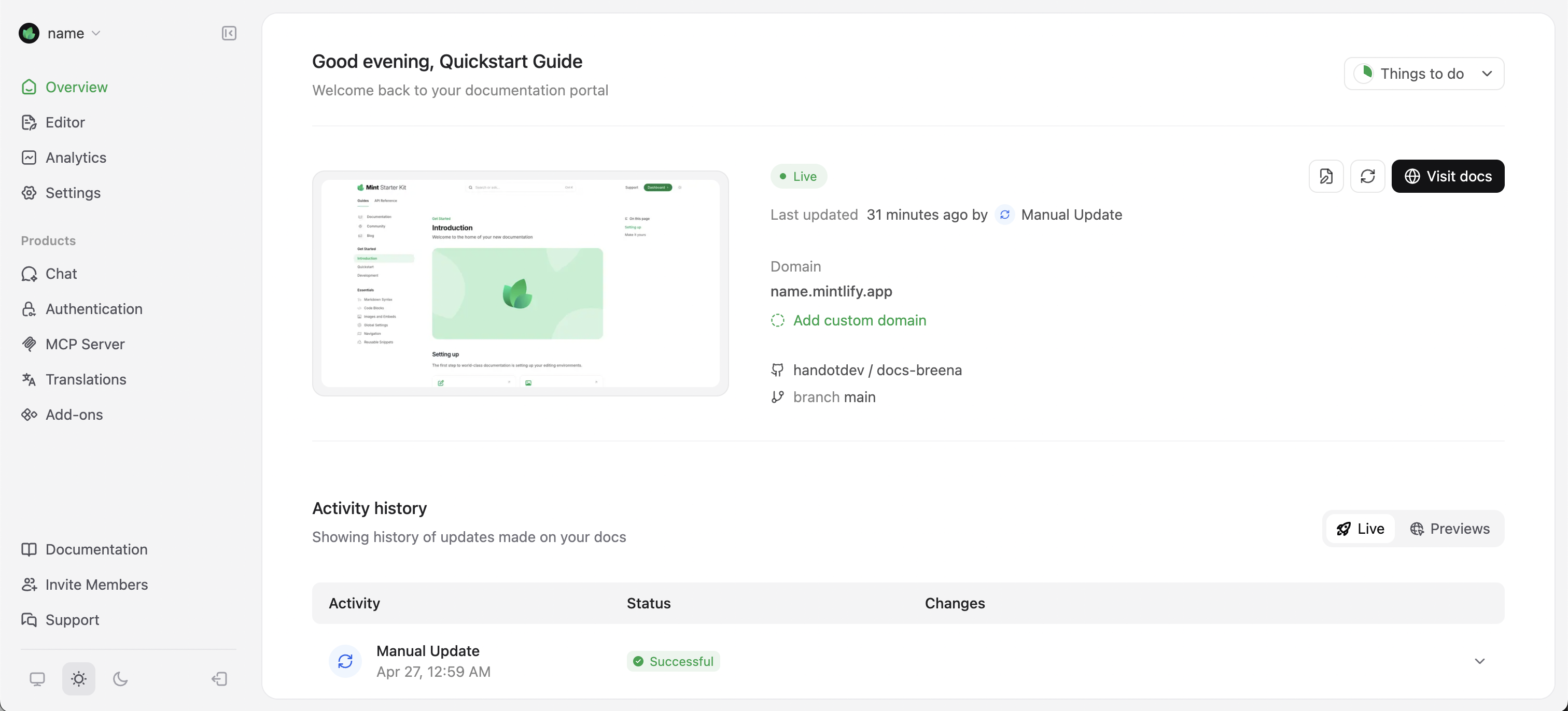
Connect GitHub
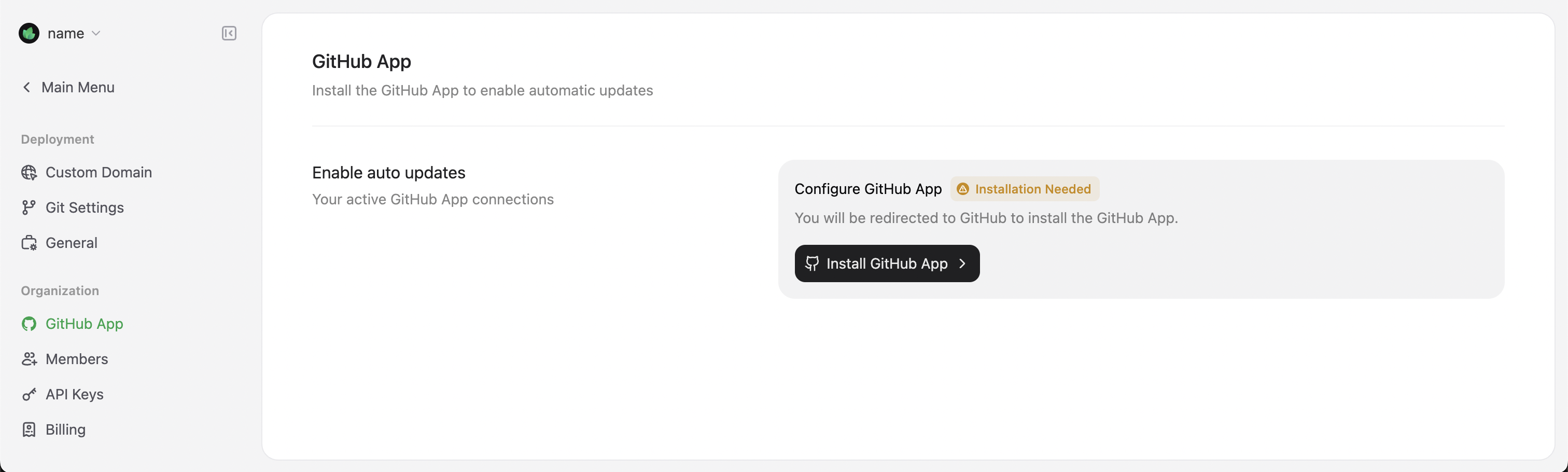
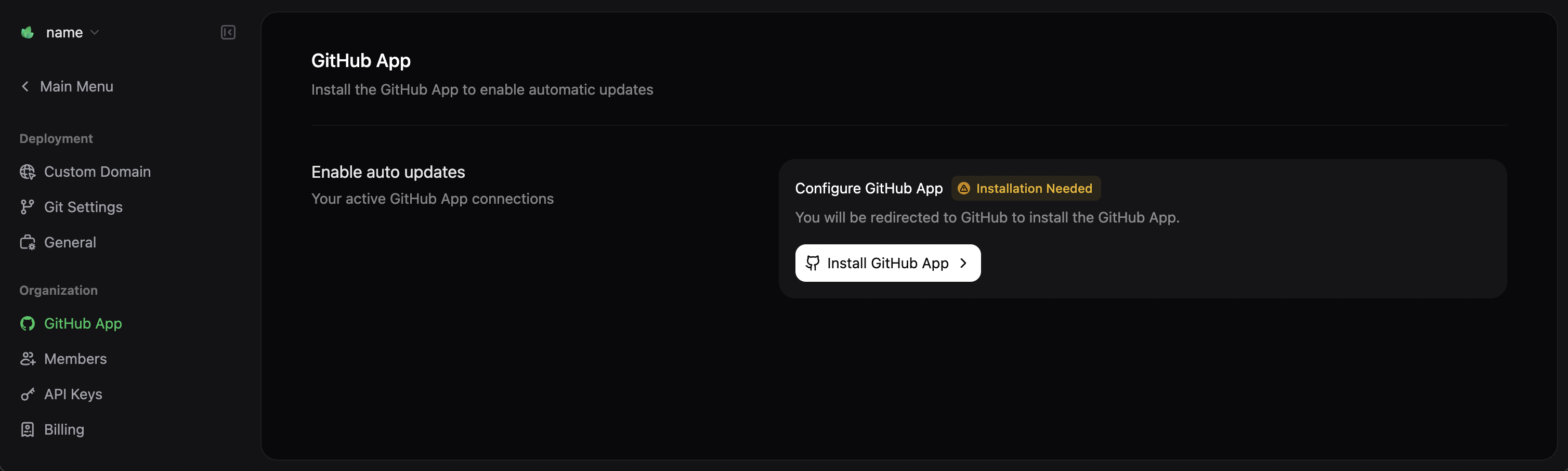
Install the GitHub App to enable automatic deployments when you push changes.- Go to Settings → GitHub App in your dashboard.
- Select Install GitHub App.
- Choose your organization and select the repositories to connect.
Choose your workflow
Code-based
Edit locally with Git and your preferred tools.
Web editor
Edit directly in your browser with a visual interface.
Code-based workflow
Install the CLI
Requires Node.js v20.17.0+ (up to v24). LTS versions recommended.
Create a project
Make your first edit
Openindex.mdx and change the title:
index.mdx
Preview locally
localhost:3000.
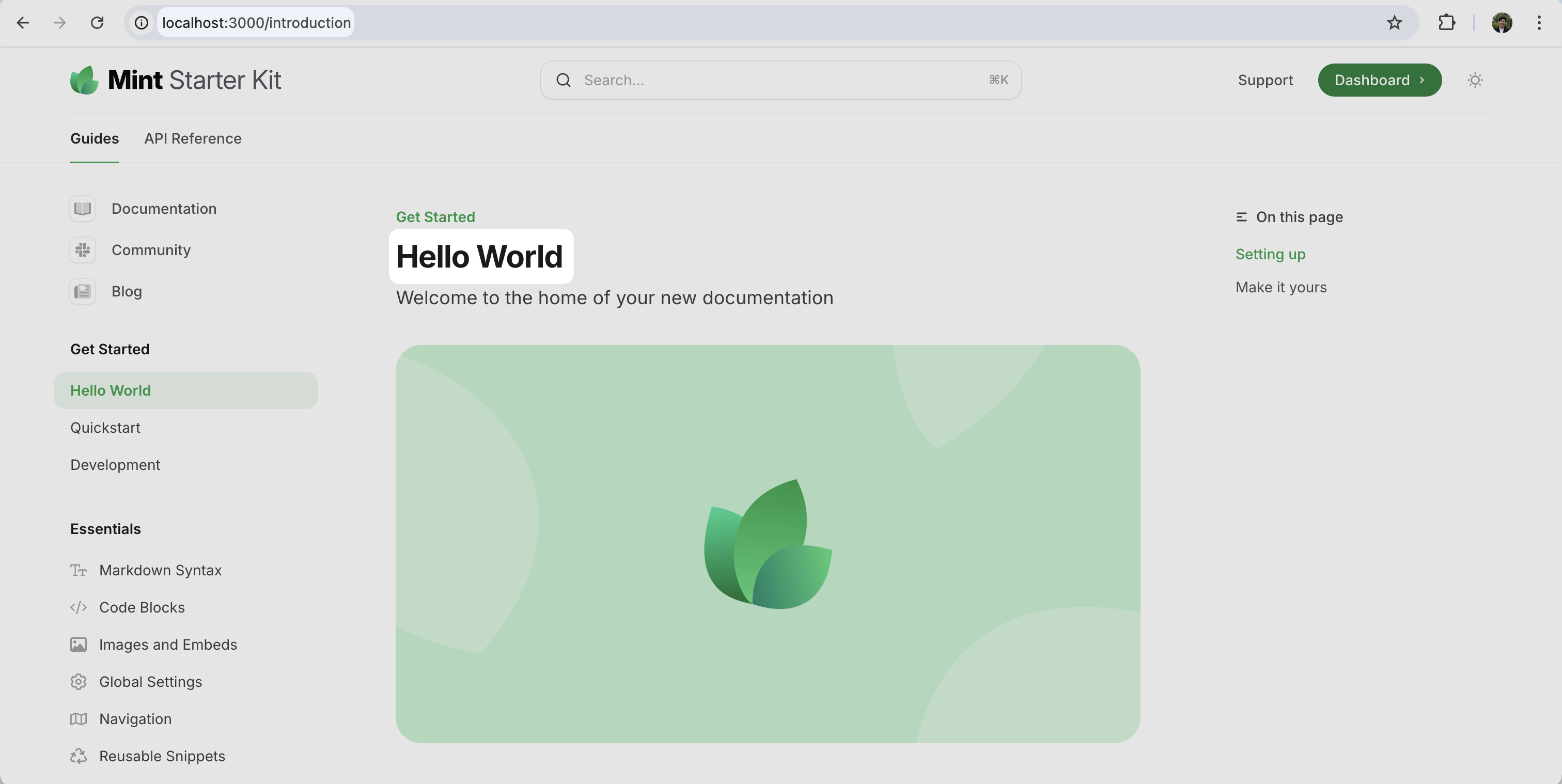
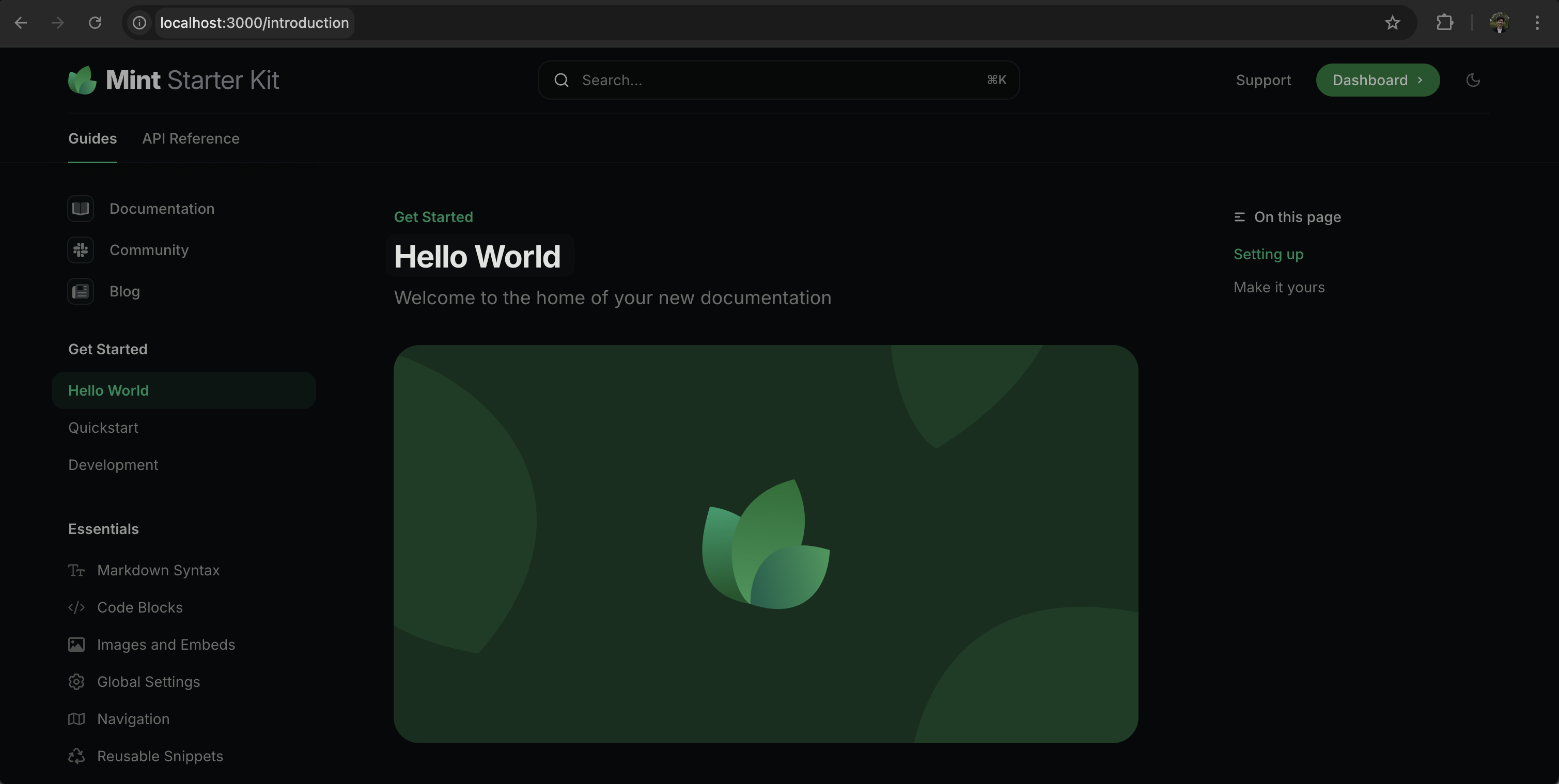
Deploy
Push your changes to GitHub. Mintlify automatically builds and deploys your site. Track progress in your dashboard or GitHub commit history.Web editor workflow
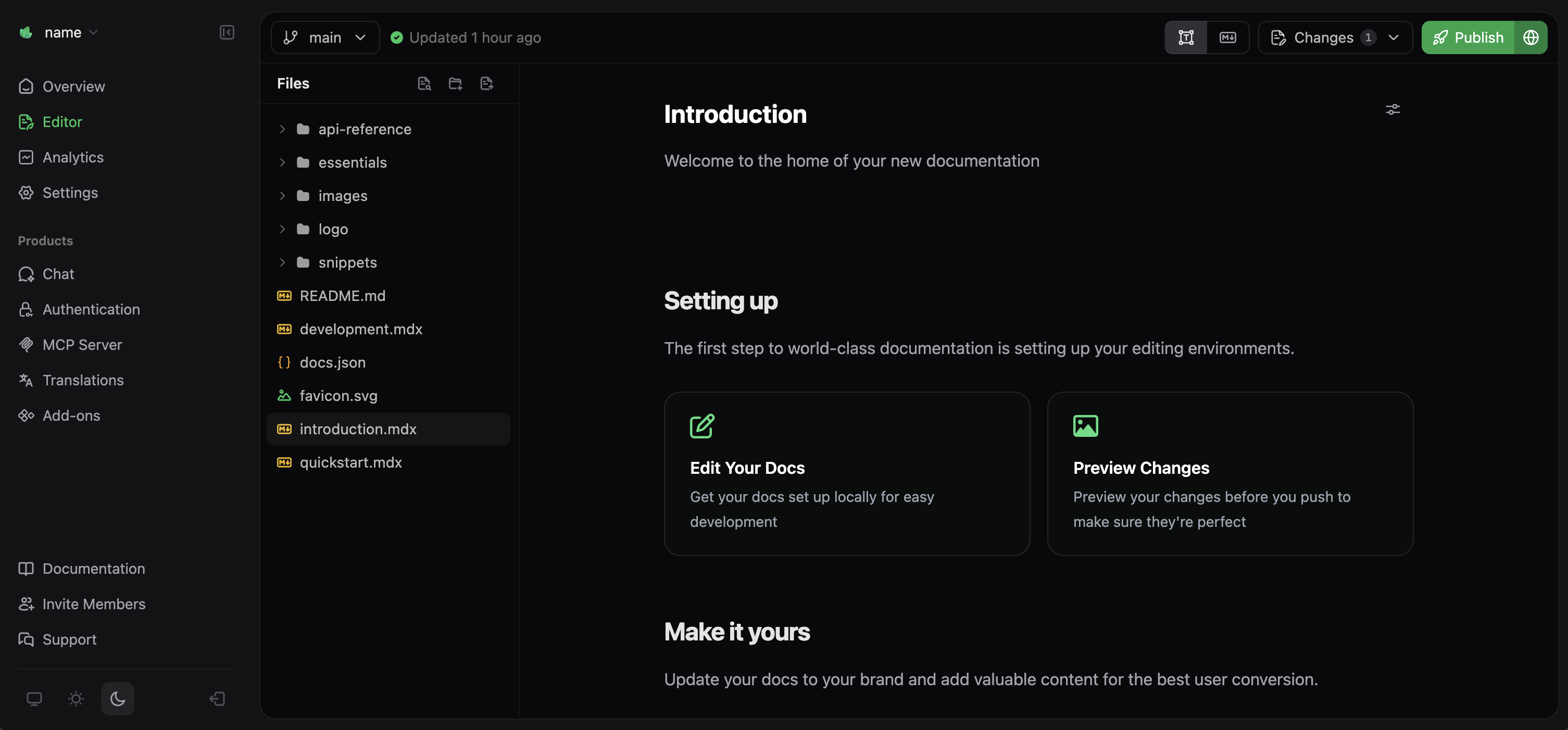
Open the editor
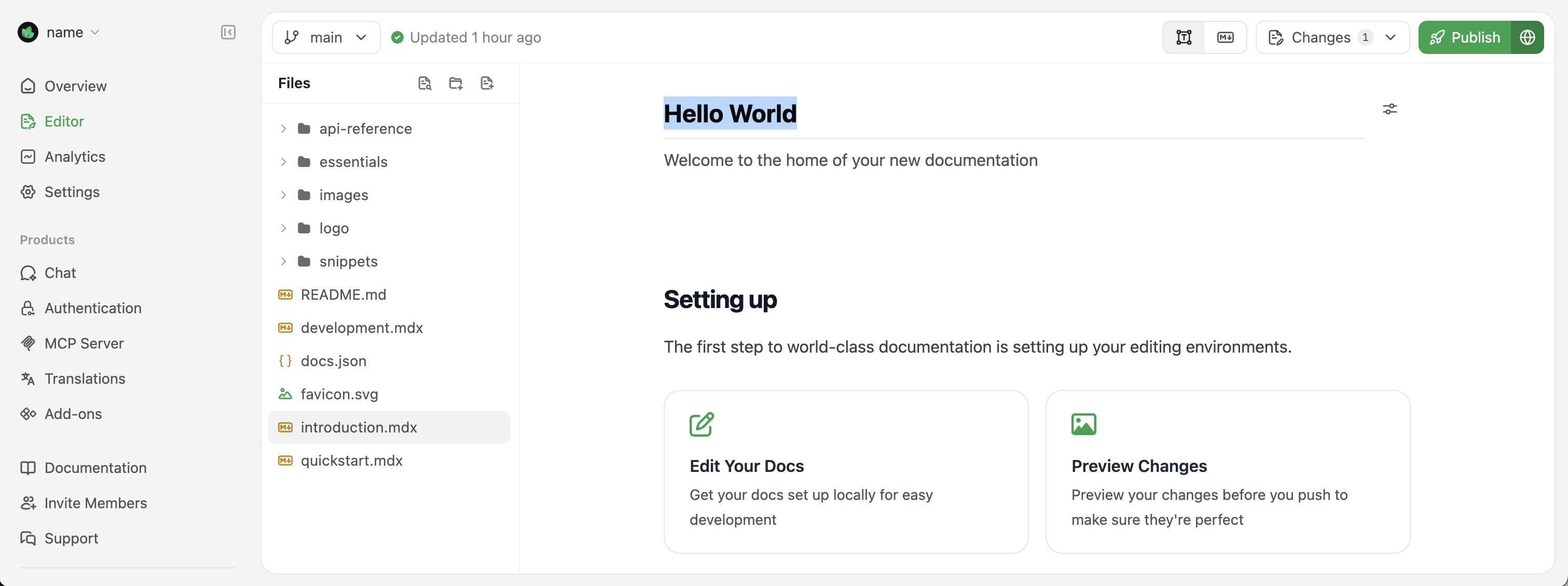
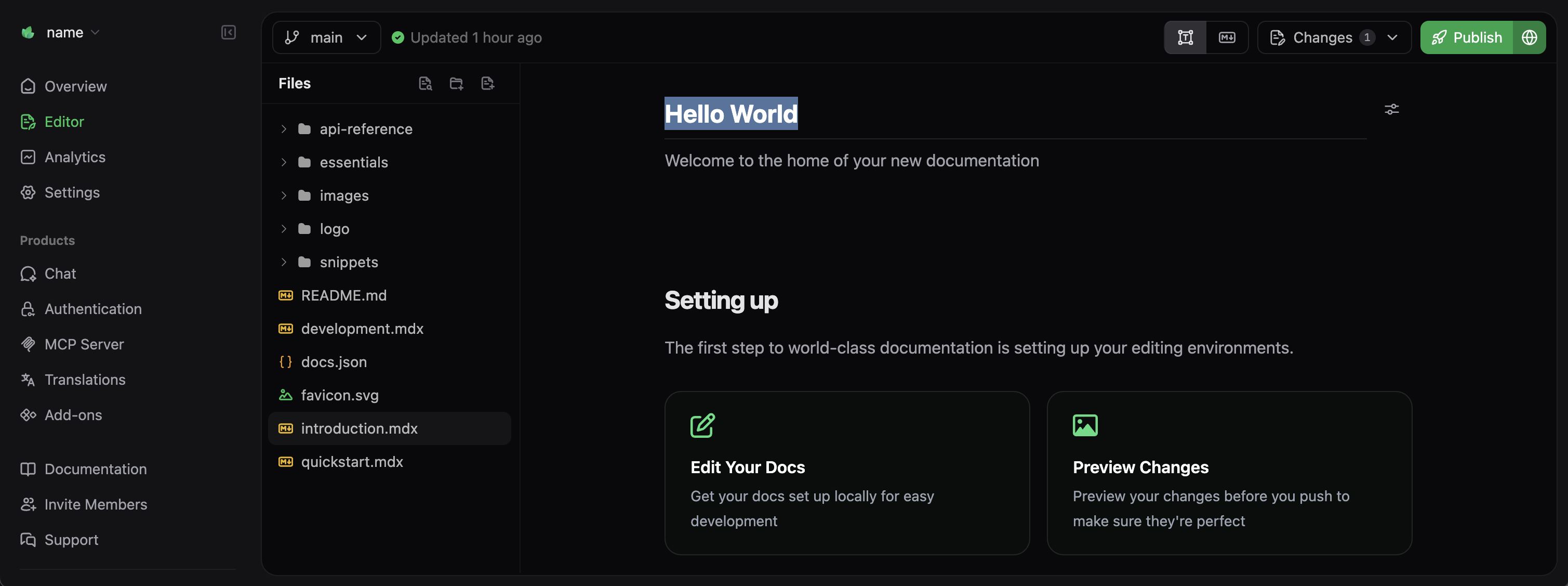
Go to your dashboard and select Editor in the sidebar.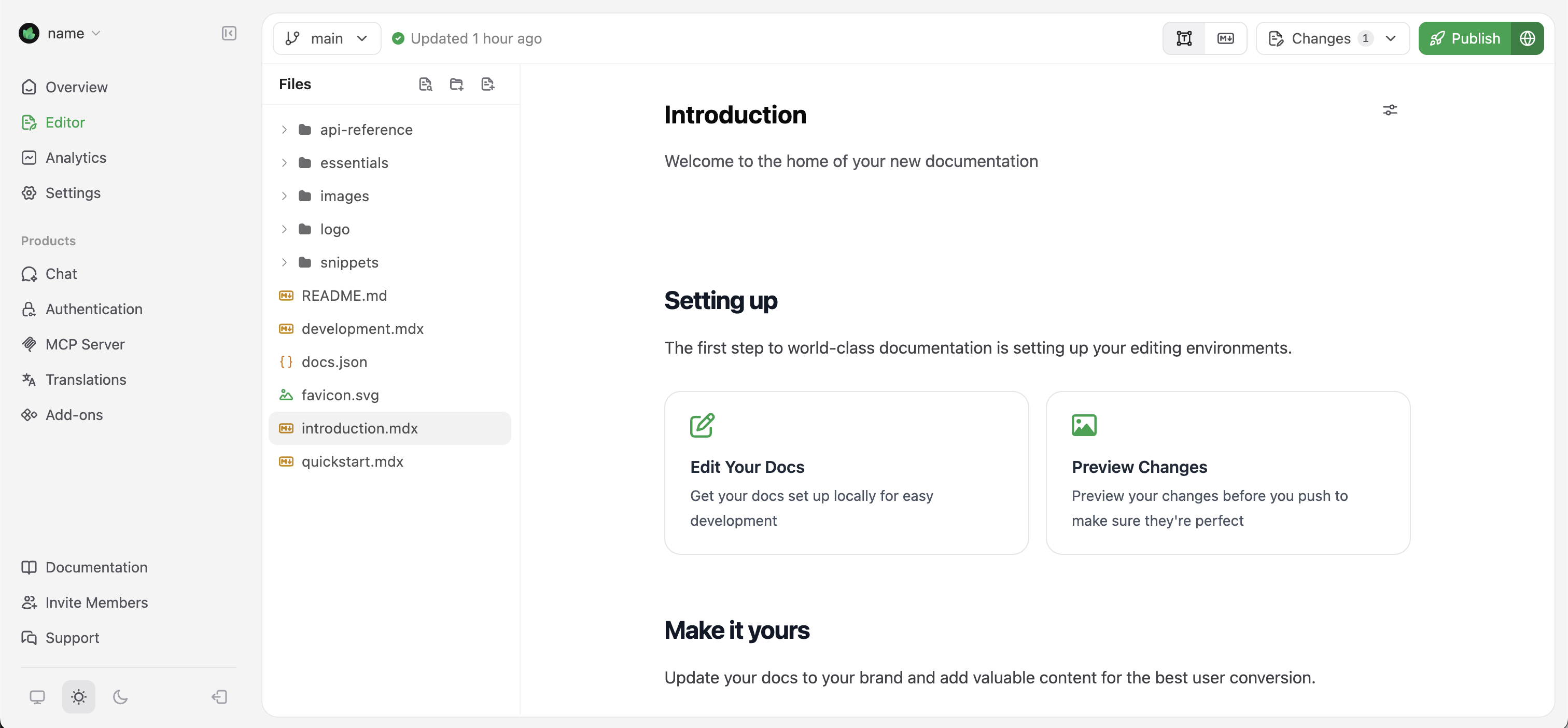
Make your first edit
Selectindex.mdx from the file explorer and change the title to “Hello World”.
Publish
Select Publish in the top-right corner to deploy your changes immediately.Add a custom domain
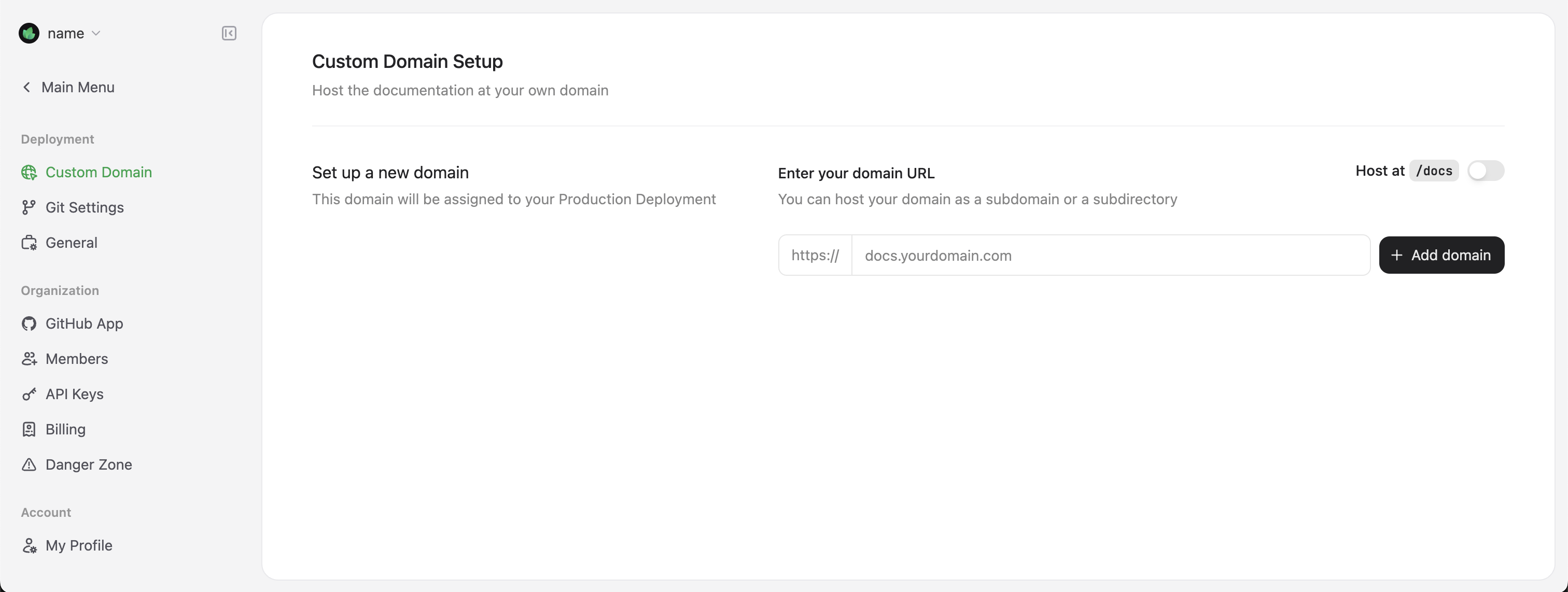
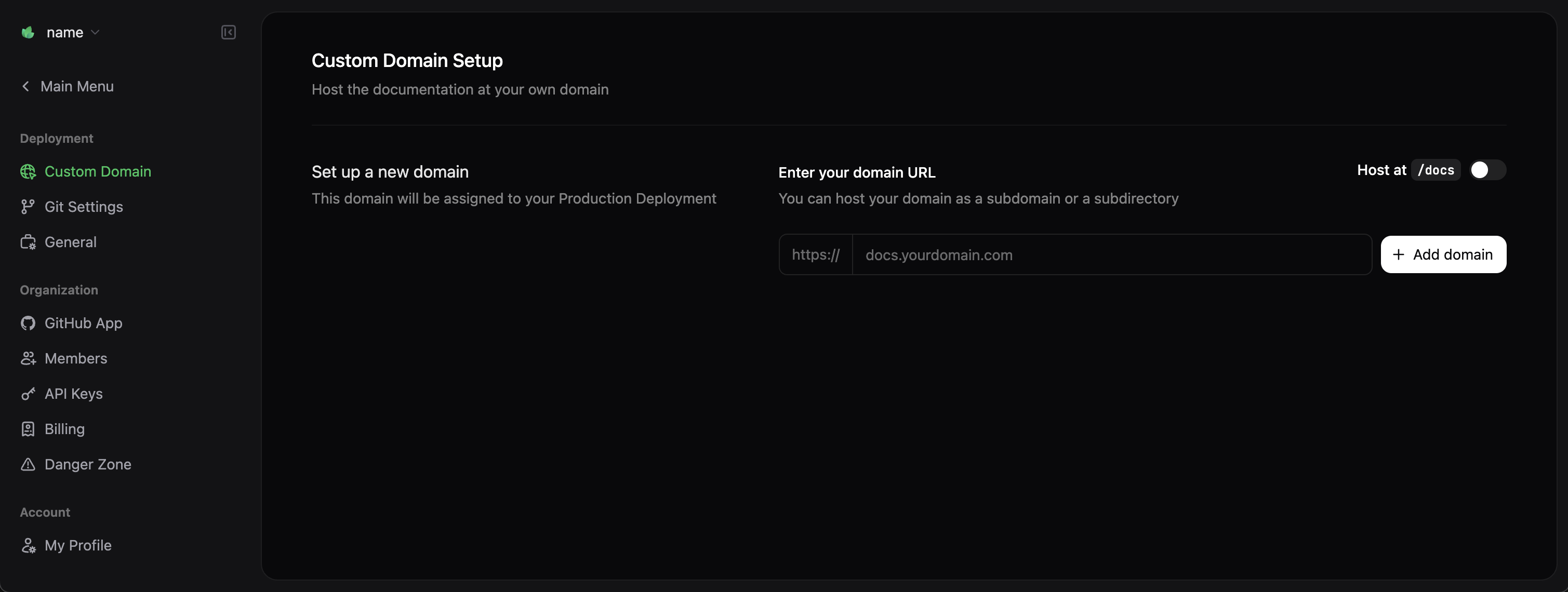
Replace your.mintlify.app subdomain with your own domain.
- Go to Domain Setup in your dashboard.
- Enter your domain (e.g.,
docs.yourcompany.com). - Add this DNS record with your domain provider:
| Record Type | Name | Value | TTL |
|---|---|---|---|
| CNAME | docs (or subdomain) | cname.vercel-dns.com | 3600 |
DNS changes can take up to 48 hours to propagate.
Next steps
Configure settings
Set up styling, navigation, and integrations in
docs.json.Customize theme
Adjust colors, fonts, and appearance.
Organize navigation
Structure your docs for easy discovery.
Add components
Use accordions, tabs, code samples, and more.
Set up API docs
Create interactive API references from OpenAPI specs.
Troubleshooting
Local preview not working
Local preview not working
Ensure Node.js v20.17.0+ is installed and run
mint dev from the directory containing docs.json.Changes not appearing on live site
Changes not appearing on live site
Deployments take a few minutes. Check your dashboard for build errors.
Custom domain not connecting
Custom domain not connecting
Verify DNS records are correct and allow up to 48 hours for propagation. Use DNSChecker to verify your CNAME record.